How to Redeem Class Clowns Codes
Exact Settings path, troubleshooting, and what each launch code is for.
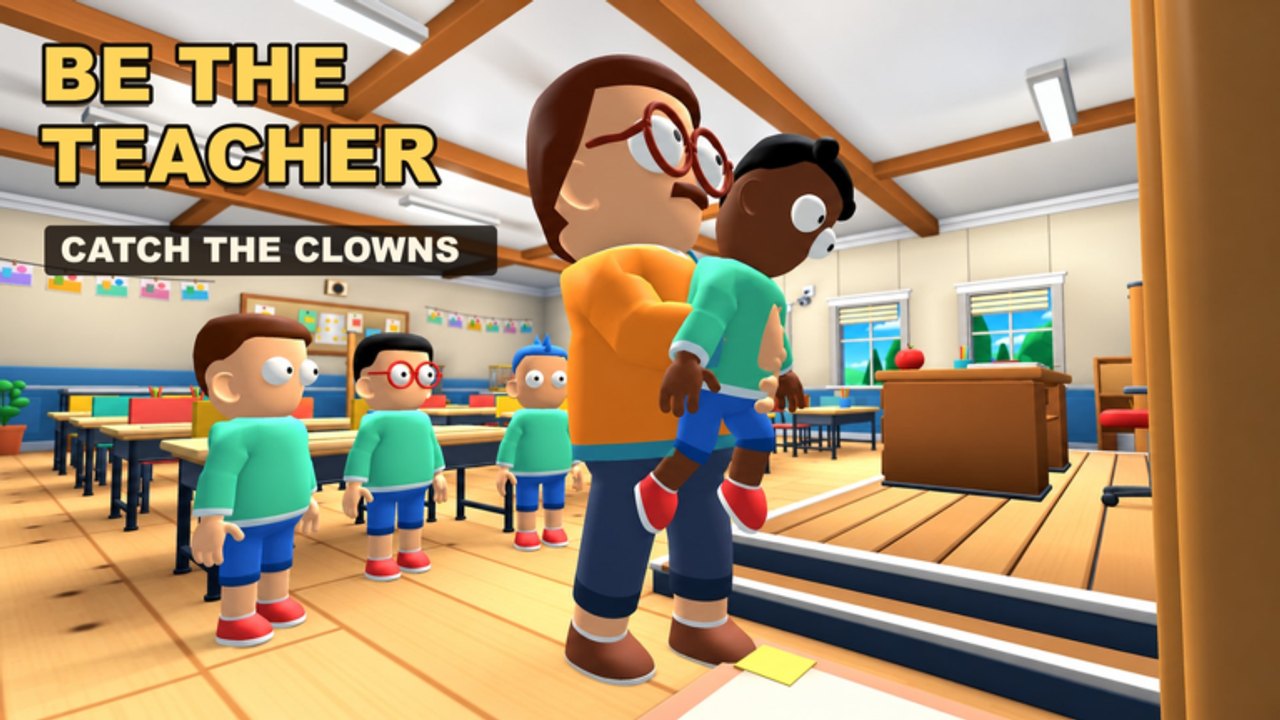
This guide shows exactly how to redeem codes in Class Clowns on Roblox so you can claim free XP and outfits without guessing menus. Class Clowns by Mr Chow Studios is a classroom survival / 1 vs All prank game: Students grab snacks, blow gum bubbles, drop banana peels and balloons, hide when the Teacher turns, and free friends from the hook, while the Teacher watches the class, stuns with chalk, and hangs caught players. Promo codes speed that progression. The current official codes are WELCOME, STUDENT, and TEACHER — always listed first on the Codes Hub.
Redeeming takes under a minute once you know the path. Do it on the account you actually play, ideally before a long session so the XP and cosmetics apply while you practice Student or Teacher fundamentals from Getting Started and the role guides.
Before you start
- Use the real game. Open Class Clowns from the verified place: Class Clowns on Roblox (universe ID 10773282691). Fake “code redeem” websites that ask for your password are scams.
- Have the codes ready. Copy from the Codes Hub or the official description: WELCOME, STUDENT, TEACHER.
- Stable connection. Menu submits can fail on spotty mobile data; if a redeem seems to do nothing, wait a few seconds before retrying.
- Know your platform. The flow is the same idea on PC, mobile, and console (Roblox supports all three for this experience), but button labels for Settings may sit in slightly different corners of the HUD. Look for the gear / Settings entry rather than memorizing one pixel position.
Step-by-step: redeem in Settings > Codes
Step 1 — Join a Class Clowns server
Press Play on the official experience and wait until you fully load into the classroom lobby or match. Codes are redeemed inside the experience, not on the Roblox website create page. Server size is 12, so you may land mid-round; that is fine — you can usually open Settings without finishing the match first.
Step 2 — Open Settings
Find the Settings control on your HUD (commonly a gear icon). On touch devices, expand the side or top menu if Settings is nested. Do not open Roblox’s account Settings in the app browser — you need the in-experience Settings panel for Class Clowns codes.
Step 3 — Go to the Codes section
Inside Settings, select the Codes tab or field. The developers call out this path in the official description: redeem in Settings > Codes. If you only see graphics or audio sliders, scroll or switch tabs until the code entry box appears.
Step 4 — Enter a code exactly
Type or paste one code at a time:
WELCOMESTUDENTTEACHER
Match spelling and capitalization. Extra spaces before or after the string often cause “invalid” errors. Do not add punctuation.
Step 5 — Confirm and check rewards
Submit / redeem the code. You should get a success message and see XP or outfit progress update. Then redeem the next code. All three can be claimed on the same account; role-themed names do not lock rewards to the role you are playing right now.
Step 6 — Rejoin if the UI glitches
If the Codes field will not open, or redeem returns a vague error after a correct code, leave to the Roblox home page and rejoin Class Clowns once. Then repeat Steps 2–5. This clears stuck client UI more often than spamming the button.
What you should receive
Official wording for these launch codes is free XP and outfits. Exact XP amounts and which cosmetic pieces unlock can change with balance patches, so treat the Codes Hub table as the status list and your in-game inventory as the source of truth after redeem. Leveling also unlocks funny outfits through normal play — codes simply accelerate that track.
After claiming, jump into a Student round and practice snacks, gum, peels, balloons, hiding on Teacher turn, and rescues with How to Play as Student and Free Friends from the Hook. If you prefer chalk and catches, use How to Play as Teacher and the Teacher player page. Cosmetics will not replace good timing, but they make learning the loop more enjoyable.
Troubleshooting redeem failures
| Symptom | Likely cause | What to try |
|---|---|---|
| Invalid / wrong code | Typo, extra space, or expired string | Retype carefully; verify on Codes and the official description |
| Already redeemed | Same account used the code before | Skip to the next code; check inventory for prior rewards |
| No Codes field | Wrong menu or UI not loaded | Confirm you are in Class Clowns Settings, not Roblox account settings; rejoin |
| Nothing happens on submit | Lag or client desync | Wait, rejoin once, redeem again |
| Works for friends, not you | Account already claimed or region/UI delay | Recheck inventory; avoid third-party “fix” tools |
Never install random “auto redeem” executors to force codes. That crosses into script risk covered on the Scripts Hub and can cost the account. Codes are plain text — typing them yourself is enough.
Mobile and console tips
On mobile, rotate to landscape if the Settings panel clips the Codes box, and use paste from the Roblox chat or a notes app to avoid keyboard typos. On console, use the on-screen keyboard carefully; consider redeeming once on PC/mobile if typing long strings is painful, then return to controller play — rewards stay on the account.
Performance tip: redeem before you need focus in a tense Teacher stare-down. Opening Settings mid-chase is how Students get chalked. Claim gifts in lobby or a calm moment, then follow Controls and Tips and Tricks during live rounds.
Keeping codes up to date
Mr Chow Studios may add event codes or retire launch ones without a long warning. After any note on Updates or Launch Notes, skim the Roblox description and this wiki’s Codes Hub. We do not invent codes beyond what the developers publish. If a YouTube thumbnail screams “50 NEW CODES,” verify each string — most will be fake or for other games.
Useful companion links while you redeem and play:
- Codes Hub — live table and status
- Guides Hub — full classroom tutorials
- Pranks Tier List — which pranks to prioritize after XP gains
- Student and Teacher — role overviews
- Links Hub — official group and game URLs
Quick redeem summary
- Play Class Clowns from the official Roblox place.
- Open Settings > Codes.
- Enter WELCOME, then STUDENT, then TEACHER.
- Confirm XP and outfit unlocks.
- Recheck Codes whenever a code fails for everyone.
That is the entire redeem loop — no browser extensions, no shared accounts, no paid lists. Spend the XP advantage on learning when to hide, when to prank, and when to free a friend from the hook so your next twelve-player classroom round goes better than the last.
Frequently Asked Questions
Quick answers for Class Clowns players.
Where is the Codes box in Class Clowns?
Open the in-experience Settings menu (usually a gear), then select the Codes section. Redeem there — not on the Roblox website account settings page.
What codes should I enter first?
Enter WELCOME, STUDENT, and TEACHER exactly as written. They are the launch codes listed in the official game description for free XP and outfits.
Do I need to be Student or Teacher to redeem a matching code?
No. Redeem all active codes on your account regardless of the role you are playing in the current round.
Why does my code say invalid after I typed it correctly?
It may have expired, already been redeemed on that account, or include a hidden space. Recheck the Codes Hub and the official Roblox description, then rejoin and try once more.
Can I redeem Class Clowns codes on mobile?
Yes. Join the experience on mobile, open Settings > Codes, and paste or type carefully. Rewards apply to the same Roblox account on PC and console.